English versionVideo language
Sample video
Information Security Basics for New Employees
Internal training slides converted into a reusable onboarding video.
Voice: ElevenLabs Eleven v3 / Liam
How to create video manuals and video SOPs: three methods compared, turning a procedure PDF into narrated slides, a script example, free options and prices.
Official sources checked:
A video manual uses video and narration to show how to carry out a work procedure or operate software. It is also called a video SOP (standard operating procedure) or video work instructions. There are three main ways to make one: film the task, record your computer screen, or build the video from documents you already have, such as a written procedure, a PDF or a slide deck.
If you already have a procedure document, PDF or PowerPoint file, building from documents lets you reuse those materials as they are. You rewrite the procedure as one slide per step, add narration, and export an MP4. Filming suits tasks where viewers need to see hand movements or how much force to use, and screen recording suits detailed, click-by-click software operations.
This guide covers how to create video manuals step by step: how to compare the three methods, an example of turning a procedure into slides and a script (a fictional example created by our editorial team), free options, and the types and prices of video manual tools, based on official information checked on November 10, 2026.
A video manual is a manual that presents a work procedure or the use of a product as a video. Compared with a written procedure made of text and images, it shows the order of operations, where to look on the screen, and how a machine or tool moves, exactly as they appear.
Paper or PDF procedures, on the other hand, work better for checking steps while doing the task. With a video, finding the scene you need takes time, and you have to stop working to replay it. If you divide the roles, using the video to learn the flow before the task and the written procedure to check details during it, the two work well together.
Responses from 943 manufacturers that use digital technologies to support skills transfer (all company sizes). These are not percentages of all companies surveyed.
According to Japan's 2026 White Paper on Manufacturing Industries, among manufacturers that use digital technologies to pass on skills, 57.2% use digital work instructions or electronic manuals and 41.7% create and share video manuals. Video manuals are one of the methods in use alongside digitized written procedures.
Video works best for tasks that follow a fixed order and involve actions or movements that are clear once you see them. The table below lists example tasks, what the video should show, and a method that fits.
| Example task | What the video should show | Method that fits |
|---|---|---|
| Using internal systems (expense claims, attendance requests, etc.) | Where to click on the screen and the order of entries | Screen recording, or slides showing a sequence of screenshots |
| Initial setup of your own software or web service (for customers) | The order of the settings and what the screen looks like when finished | Screen recording, or slides showing a sequence of screenshots |
| Internal procedures and rules (onboarding paperwork, information security, etc.) | The flow of the procedure and the reasons behind it | Slides (built from documents) |
| Basic equipment operation (multifunction printers, cash registers, inspection devices, etc.) | The name of each part and the order of operation | Slides with photos, or filming |
| Hands-on work and skills (assembly, cooking, caregiving, etc.) | Hand movements, how much force to use, working speed | Filming |
| Customer service and phone handling | Wording and the order of the exchange | Filming (role-play), or slides with example phrases |
| Workplace safety checks (site rules, hazardous areas) | Hazardous areas and the steps for checking them | A mix of slides with photos and filming |
Put one procedure in each video. If you split them up, for example into "Submitting an expense claim" and "Fixing a claim that was sent back," viewers can open just the video they need.
As an example from the public sector, the Workplace Safety Site run by Japan's Ministry of Health, Labour and Welfare (MHLW) offers safety and health video materials for foreign workers in 14 languages. It is a useful reference for producing the same content as a set of language versions.
There are three ways to make a video manual, depending on what you show. You don't have to choose just one; you can combine them in a single video.
| Method | Best for | What you need | When the procedure changes | Not suited to |
|---|---|---|---|---|
| Filming | Hand movements, how much force to use, how to handle tools, customer interactions | A smartphone or camera, a tripod, a microphone, a shooting script | Reshoot and re-edit the scenes that changed | Detailed on-screen operations, explanations heavy with text or numbers |
| Screen recording | Clicks and the order of entries in software or web services | Your computer's built-in screen recorder, test data, notes on what to say | Re-record whenever the screen design or fields change | Hands-on work, steps that happen away from the screen |
| Building from documents | Procedure flows, rules and the reasons for them, operations that photos or screenshots can cover | Procedure documents, PDFs or PowerPoint files, photos or screenshots, a narration script | Remake only the parts where the script or images changed | Content where the speed of a movement or the feel of the hands is the point |
The strength of filming and screen recording is that the movement goes straight into the video. The trade-off is that a changed procedure means reshooting, and if you talked while recording, a slip of the tongue also means recording again.
Building from documents lets you reuse the structure and images of an existing procedure document. You don't need to book a time and place for filming, and the person who wrote the procedure can make the video at their own desk. You can also combine methods by preparing a separate short filmed clip just for the scenes where hand movements matter.
Building from documents takes the five steps below. There is no filming; instead, most of the work goes into preparing the slides and the narration script.
When the procedure changes, fix steps 2 to 4 in order and then export again.
Start by deciding who will watch and what they should be able to do when they finish. Writing it down, for example "A new hire in their first week can submit a travel expense claim on their own," makes it easier to choose which steps to include and which explanations to leave out.
Ask the department that owns the procedure document to review the content. Keeping the person who makes the video separate from the person who decides whether the procedure is correct also makes it clear who updates the video if the procedure changes after release.
If you save a procedure document as a PDF as it is and turn it into a video, each page holds several steps and the narration for each page gets long. With one step per slide, the screen and the narration stay in sync, and when a step changes you only need to fix that one slide.
The table below splits a procedure for claiming travel expenses in an internal system into seven slides (a fictional example created by our editorial team).
| Slide | What's on screen | What the narration covers |
|---|---|---|
| 1 Title | Title, intended audience, version (e.g., November 2026 edition) | What viewers will be able to do after watching |
| 2 What you need | Receipts, a note of the travel date and route | What to have ready before you start |
| 3 Open the claim screen | A screenshot of the menu, with the item to click outlined | Which screen to start from and which menu item to click |
| 4 Enter the route and amount | The form with sample entries filled in | What goes in each field, and common mistakes |
| 5 Attach the receipt | The attach button and what appears once the file is attached | When a receipt is required and which file formats are accepted |
| 6 Submit and note the number | The confirmation screen after submitting | What happens until approval and what to keep a note of |
| 7 If you need help | Contact information | Who to contact if the claim is sent back or something is unclear |
If a screenshot would show a person's name, an employee number or real amounts, replace them with test values before capturing it. Marking the place to click with a box or an arrow lets the narration point to it, as in "the button in the red box."
Make the slides widescreen (16:9) and keep the text large enough to read on a smartphone. You don't need to put the whole procedure text on the slides. Move the detailed explanation into the narration and keep the actions and screens on the slides.
Procedure documents are written to be read, so their sentences are short and compressed. Read aloud as they are, they are hard to follow by ear. When you turn them into a script, fix the following points.
Example: a procedure line rewritten as narration (a fictional example created by our editorial team, translated from the Japanese original)
Procedure document: Enter route/amount, attach receipt image, and click "Submit."
Narration script: Next, enter the route you traveled and the fare. In the "Route" field in the middle of the screen, enter the station where you got on and the station where you got off. In the amount field, enter the one-way fare. When you've finished, we'll attach the receipt on the next slide.
If an AI voice will read the script, also pay attention to how numbers and symbols are read. Writing them the way you want them spoken, such as "January 15" instead of "1/15" or "fifth floor" instead of "5F," reduces misreadings. For guidance on script length and more examples of turning written text into spoken language, see our guide to writing narration scripts.
There are two main ways to add narration: record your own voice, or have an AI voice read the script. Either way, keeping the audio separate for each slide means you can redo just that slide when something needs fixing.
In PowerPoint, you can record narration slide by slide with the slide show recording feature (Record Slide Show, or the Record tab in Microsoft 365) and export the result straight to video. Microsoft's official guides explain the following points.
Recording yourself costs nothing extra and lets the person in charge explain in their own voice. On the other hand, any slip means re-recording, and every change to the procedure takes recording time.
With an AI voice, you edit the script text and regenerate the audio. It doesn't take up anyone's time to speak, and you can also make versions in other languages. AI voices sometimes misread product names and internal abbreviations, so listen to the generated audio all the way through once to check.
If your procedure is in PDF or PowerPoint form, SpeechSlide AI takes you from a draft script through AI narration to an MP4 export in one place. It doesn't film or record your screen; it adds narration to the slides you upload and turns them into a video. The steps below use the seven-slide travel expense example from the previous section.
Upload a PDF or PowerPoint file
Create a new project and upload the procedure file. Supported formats are PDF and PowerPoint (.pptx, .ppt), up to 20 MB per file when uploading from the web app. If your procedure was made in Word or Google Slides, export it to PDF first. Password-protected PDFs can't be used.
Generate all the scripts at once
Open Batch Script, choose the script language, and enter your Instructions. "Attach original PDF to AI (Recommended)" is on by default, so a script is written for each slide with the slide layout and visual information taken into account.
Check and edit the scripts
Check slide by slide that the button names and the order of steps match the procedure document, and edit by hand where needed. To regenerate a single slide, use "Generate script for this slide." Batch generation can't be undone, so take care if you run it again after making manual edits.
Choose a voice and generate the audio
Choose a voice engine (ElevenLabs, Google, Google (Gemini) or OpenAI) and a voice, then generate the audio. Generating the audio takes roughly 10 to 30 seconds per slide. For slides with nothing to say, such as the title slide, set Audio Disabled and choose how many seconds the slide is shown. Adjust the pause after each slide with Margin Sec (1 second by default).
Generate the video and watch it through
Export with Generate Video. Exporting takes roughly 1 to 5 minutes and produces a Full HD (1920×1080) MP4. Ask someone from the department that owns the procedure to watch it through as well.
Share it as a download or a share link
MP4 files can be downloaded on every plan; on the free plan they carry a watermark. To use a share link, turn on sharing for each video (it is off by default).
Example instructions to enter in Batch Script (written by our editorial team)
This is an operating guide for employees using the company expense system for the first time. For each slide, explain in spoken language, in the order of the operations, where to look on the screen and what to click. Put button names in quotation marks exactly as they appear on screen. Do not add conditions or amounts that are not in the document. Keep each slide to 3 or 4 sentences.
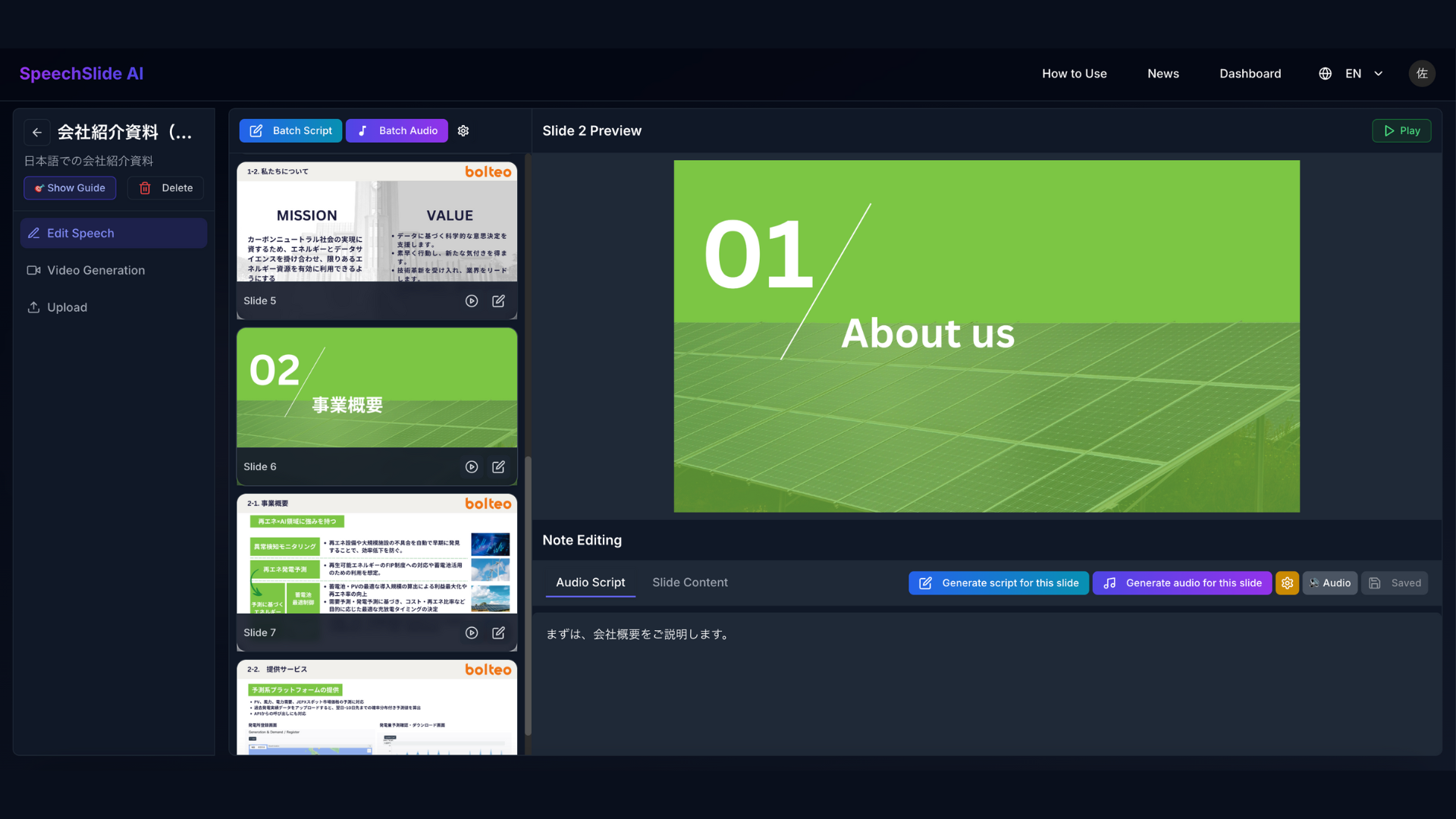
SpeechSlide AI does not offer automatic captions, background music, avatars (on-screen presenters), vertical video export, or translation of the text on slides. If you need captions or music, finish the exported MP4 in a video editor.
The free plan (no credit card required) lets you create 2 projects a month, with up to 8 slides per project and up to 4 videos a month, and download videos with a watermark. The seven-slide example above fits into one video. A project can have up to 20 slides on the Standard plan and up to 30 on Premium, so split long manuals into groups of related steps.
Each method has free options. They differ in what is free and where paid features begin, so the table below sorts them out.
| Option | What you can do for free | Limits and notes | Method it suits |
|---|---|---|---|
| PowerPoint slide show recording and video export | Record narration for each slide and export to a video format such as MP4 | Requires the PowerPoint desktop app. Recording isn't available in the web version | Building from documents (your own voice) |
| Snipping Tool on Windows 11, screen recording on Mac | Record on-screen operations (Windows logo key + Shift + R on Windows, Shift-Command-5 on Mac) | Trimming unwanted parts and adding captions require other software | Screen recording |
| Microsoft Clipchamp (free plan) | Export up to 1080p without a watermark. AI voiceover (Japanese available), automatic captions, screen recording | 4K export and premium stock media are paid features. Included with Microsoft 365 Personal and Family | Editing, captioning, screen recording |
| Google Vids (personal Google account) | Convert Google Slides into a video and add AI narration | AI features limited to 50 credits a month. Imports Google Slides files from Google Drive. AI-generated videos up to 10 minutes | Building from documents (Google Slides) |
| SpeechSlide AI (free plan) | Generate scripts and audio with AI from a PDF or PowerPoint file and export to MP4 | 2 projects a month, up to 8 slides per project, up to 4 videos a month. Videos carry a watermark | Building from documents (PDF, PowerPoint) |
Companies that already use Microsoft 365 or Office can use PowerPoint at no extra cost. If you can spend the time recording, you can start by making one video in PowerPoint and consider AI voices once re-recording or language versions become a burden.
Google's official help says that many of the AI features in Google Vids currently support English only. Slide conversion and AI narration also support Japanese.
By how they work, video manual creation tools fall into four groups: tools that add captions and translations to filmed video, tools that build procedures from images and text (step-based), tools that record computer operations and turn them into manuals, and tools that make videos from documents. Some also cover distribution and viewing management, not just creation.
The table below shows representative tools whose prices we could confirm on their official sites, plus one that does not publish prices. Most are Japanese services with Japanese-language websites. Prices are in Japanese yen as each company lists them, so some exclude tax and others include it.
| Tool | Type | Main input | Price (as officially listed) | Tax and contract |
|---|---|---|---|---|
| tebiki Genba Kyoiku (on-site training) | Filming-based. AI captions and AI translation. A beta feature creates draft manuals from procedure PDFs | Filmed video. Procedure PDFs (beta feature) | Not listed on the official site (contact sales) | — |
| Teachme Biz | Step-based. Includes a feature where AI builds a step-by-step manual from imported documents, work videos, Excel files and more | Existing documents, work videos, Excel files, etc. | Entry plan ¥89,800/month (50 accounts) | Excluding tax. 12-month contract, paid upfront |
| iTutor | Records computer operations and turns them into a step-by-step manual | On-screen computer operations | Document/Video from ¥380,000, Standard from ¥700,000, Pro from ¥900,000 | Excluding tax |
| EQ Presentation Cloud (J-Stream) | Document-based. AI writes the script and voice | PowerPoint, landscape PDFs | From ¥45,000/month, setup fee ¥120,000 (first year only) | Excluding tax. 1-year contract |
| Google Vids | Document-based, plus editing. Converts Google Slides into video | Google Slides, screen and audio recording | Basic features free with a personal Google account. Included in eligible Google Workspace plans | Workspace is priced per user (excluding tax) |
| SpeechSlide AI | Document-based. AI writes a script and voice for each slide | PDF, PowerPoint | Free; Standard ¥2,200/month; Premium ¥5,500/month (US$15 and US$35 for users outside Japan). Business from ¥49,800/month (5 seats included) | Including tax. Individual plans are billed monthly; Business plans are 6- or 12-month contracts |
When comparing, look beyond the price at what you build from (filming, screen operations or documents), the contract term (monthly or annual), and how many people will use the tool. If you also want to manage viewing records and quizzes, use a tool with management features or combine it with your organization's learning management system (LMS).
SpeechSlide AI has no published LMS integration, so you upload the exported MP4 to your LMS. Sharing projects within a team is available only on the Business plan.
If you're unsure which method or tool to use, decide based on what you need to show and what materials you already have.
Captions let people watch a video in more situations, such as workplaces where sound can't be played or videos published outside the company. In WCAG 2.2, the international guidelines for web accessibility, captions for prerecorded video are a success criterion at the most basic level (Level A).
SpeechSlide AI does not create captions. If you need them, import the exported MP4 into an editor such as Clipchamp, generate automatic captions, and fix typos and terminology. Check each editor's official list for the languages its automatic captions support.
Workplaces with staff who speak other languages may also need translated versions. In Japan, for example, the Ministry of Health, Labour and Welfare reports that there were 2,571,037 foreign workers at the end of October 2025, the highest number since employer reporting became mandatory in 2007. By nationality, the largest groups came from Vietnam, China, the Philippines, Nepal and Indonesia, in that order. Before making versions in other languages, find out the nationalities of the people in your workplace and which languages they read most easily.
Percentages are shares of all foreign workers (2,571,037). These seven countries account for 80.1% of the total (calculated by our editorial team). A worker's nationality and the language they read most easily are not always the same.
In SpeechSlide AI, you can write scripts in any of nine languages, including Japanese and English, or specify another language by typing its name. Narration supports 12 to 24 languages depending on the voice engine.
Of the main languages of the countries in the chart, Vietnamese and Portuguese can be selected as narration languages on all four voice engines, Chinese (Simplified) on Google, OpenAI and ElevenLabs, and Indonesian on Google (Gemini).
Filipino, Nepali and Burmese are not in the narration language lists, so one option is to have a speaker of the language record the narration, for example with PowerPoint's recording feature. For safety and health content, MHLW's multilingual video materials are also available. Our safety training video guide includes a table of language support.
Text on the slides is not translated, so if you want the on-screen text in another language too, prepare a translated version of the slides. If the internal system's screens stay in the original language, you can keep the slides as they are and use the narration to explain where each button is and what it does.
Before release, have someone who doesn't know the procedure watch the video once and see whether they can do the task from the video alone. Also check the following points.
For internal video manuals, the usual approach is to store them in your organization's file sharing (SharePoint, Teams, Google Drive, etc.) and control who can view them with permissions. In Microsoft 365, videos are saved to OneDrive or SharePoint like any other file and managed with the same permissions.
On YouTube, an "Unlisted" video can be watched by anyone who has the link, and if the link is forwarded, people outside your company can watch it too. Don't use it for confidential procedures; use it for things like product how-to videos for customers. To show a video only to specific people, set it to "Private" and invite viewers by email address.
When a system screen or an internal rule changes, identify the slides and script for the steps that changed and fix those first. Using the same version name for the procedure document and the video makes it easier to tell which videos are out of date.
How much you need to redo depends on what changed. The table below shows how to update a video made by filming or screen recording and one made in SpeechSlide AI.
| What changed | What to fix | Video made by filming or screen recording | Video made in SpeechSlide AI |
|---|---|---|---|
| Wording or added explanation (same screen) | Narration | Re-record the audio for that scene and swap it in. If you talked while recording, re-record the scene | Edit that slide's script, regenerate its audio with "Generate audio for this slide," then generate the video again |
| Order of the steps | The order of scenes and the words linking them | Reorder the scenes in your editor. If you talked while recording, re-record the linking parts | Drag the slides into the new order in the editor. Regenerate the audio for slides whose linking words changed, then generate the video again |
| Button names or screen appearance | Screenshots, slides, script | Re-record and re-edit the scenes that changed | You can't upload a new file to the same project, so create a new project with the revised document |
| Steps added or removed | Adding or removing slides or scenes, and the script around them | Film or record the new scenes and re-edit the sequence | Create a new project with the revised document |
Once the new version is out, replace the video and link where it's stored, and update the version and date on the title slide. Review links you shared earlier so that nobody opens the old version. Our guide to making training videos also covers how to revise training videos.
When you look at video manual examples, choose samples close to your own work and check how much text is on each slide, how long the narration runs, and how long the pause is between slides. These give you a reference point for your own video.
On the SpeechSlide AI home page, you can switch between finished sample videos made from slides and narration. The software how-to example is "Tasclo Initial Setup Guide" (a fictional product), the new-staff onboarding example is "Customer Service Basics for Store Staff," and the safety training example is "Forklift Area Safety Checks in a Factory." The corporate training page has Japanese and English versions of "Information Security Basics for New Employees."
These are production examples for seeing how the format looks, not case studies from real companies. Their audio was made with ElevenLabs Eleven v3, which is different from the current default voice for new slides.
Just upload your slides to get a narrated presentation video like this one.
Internal training slides converted into a reusable onboarding video.
Voice: ElevenLabs Eleven v3 / Liam
Explore slide-to-video workflows across education, healthcare, training, sales, and creator use cases.
View Use CasesYes. The free plan lets you create up to 2 projects and 4 videos per month. No credit card required.
PDF and PowerPoint (PPT/PPTX) files are supported. Upload the slides you already have.
AI narration is available in Japanese, English, Chinese, Korean, German, Spanish, and more.
Yes. Videos can be used for training, sales, lectures, and marketing. Paid plans allow watermark-free MP4 downloads.