English versionVideo language
Sample video
Anomaly Detection in Rotating Machinery Using Self-Supervised Learning
A university research presentation turned into a narrated video for academic sharing.
Voice: ElevenLabs Eleven v3 / George
How to write a narration or voiceover script: 30 seconds is about 50–83 words at 100–165 words a minute, plus rewriting for the ear, examples, and AI drafts.
Official sources checked:
A narration script (also called a voiceover script) is written to be understood in a single listen, not read on a page. The basics of how to write a narration script are simple: work out the length from the video's running time, keep sentences short, and once it's written, read it aloud and time it. The right length depends on your pace: at 100–165 words a minute, 30 seconds is about 50–83 words.
This guide covers how many words fit in 30 seconds or a minute, how to turn written text into spoken language, narration script examples for training, software manuals, product videos, and commercials, and a script template you can copy. Later sections show how to draft a script with AI and check it by having an AI voice read it aloud.
It's written for people scripting narration for their own videos or slides. It isn't a collection of practice scripts for aspiring voice actors or narrators.
A narration script is the explanatory text that plays over a video or a set of slides. It's also called a voiceover script. You need one whenever you explain something by voice while showing a screen: training videos, software tutorials, product introductions, lesson videos, commercials, and so on.
The thing to keep in mind is that listeners can't reread. Readers of a document can go back to a word they didn't catch, but audio keeps moving. So keep sentences short, choose words that make sense on first hearing, and use your voice to tell viewers where on the screen to look.
A narration script also differs a little from a presentation script. A live presenter can watch the audience and rephrase; a narration plays exactly as it was recorded. Because there's no chance to correct yourself, make it easy to follow at the script stage.
| Type of text | How the audience takes it in | How to write it |
|---|---|---|
| Narration script | Watches the screen and hears it once | Use short sentences that finish cleanly. Point to what's on screen in words. |
| Presentation (speech) script | Watches the speaker and can ask questions on the spot | You can rephrase based on reactions. Favor wording that's easy for you to say. |
| Documents and manuals | Reads at their own pace and can reread | You can pack information into bullet points and tables. |
| Subtitles and on-screen text | Reads it while hearing the audio | Break it into lengths that fit the screen. Keep it consistent with what's spoken. |
Whatever the purpose, the writing order is much the same. Decide the running time and what you want to get across before you start, and you'll do far less cutting afterward.
Steps 1 and 2 set the framework; then repeat steps 3 to 6 for each scene.
Don't skip step 5. Calculations from word or character counts are only a guide; the real length depends on the reader's pace and pauses.
You estimate the length of a narration script from its running time and the speaking pace. For English, count words. In its guidance for Speaker Coach, PowerPoint's rehearsal feature, Microsoft recommends speaking at 100 to 165 words per minute, and says field studies and past research found this is the pace most audiences can follow most easily.
There is no single official standard for narration speed. The table shows word counts at three paces within Microsoft's range. For training videos or slide walk-throughs, where viewers need time to look at the screen, starting from the slower half (100–130 words per minute) leaves room for pauses.
| Length | At 100 words/min | At 130 words/min | At 165 words/min |
|---|---|---|---|
| 15 sec | 25 words | about 33 words | about 41 words |
| 20 sec | about 33 words | about 43 words | 55 words |
| 30 sec | 50 words | 65 words | about 83 words |
| 60 sec (1 min) | 100 words | 130 words | 165 words |
| 90 sec | 150 words | 195 words | about 248 words |
| 3 min | 300 words | 390 words | 495 words |
| 5 min | 500 words | 650 words | 825 words |
For a 30-second narration, for example, start with about 65 words, read it aloud, then add or cut. In a slide video, decide how many seconds each slide gets; that makes it easier to hit the total length.
Some scripts take longer to say than their length suggests. "2026" is four characters, but you say "twenty twenty-six." "3F" becomes "third floor." Scripts with lots of numbers, abbreviations, or commas tend to run longer than calculated, so time them early.
Japanese scripts are estimated by characters rather than words. Guides from Japanese video and narration production companies range from about 230 to 350 characters per minute, and we found no official standard. The Japanese edition of this article includes a character-count version of the table.
For viewers who are learning the language, or who are new to the subject, write on the assumption that you'll speak more slowly than usual. A study that measured speaking speed in the listening section of the Japanese-Language Proficiency Test (JLPT), which runs from N5 (easiest) to N1 (hardest), found an average of 5.05 morae per second at N5 and 7.07 at N1.
Averages from 273 utterances in the task-based comprehension audio of the listening section of the JLPT Official Practice Workbook Vol. 2. A mora is a unit of Japanese rhythm: "kya" counts as one mora and "gakkō" (school) as four. Morae are not the same as characters or words, so these values can't be compared directly with the table in the previous section.
N5 speech is about 70% as fast as N1. For training or safety education aimed at employees working in a language they're still learning, turn down the speed setting if you use an AI voice, or consciously leave pauses if you read it yourself. Slowing down makes the video longer, so cut words to match.
Japan's Immigration Services Agency and Agency for Cultural Affairs publish guidelines on "Easy Japanese" (yasashii nihongo), a simplified style for communicating with foreign residents. Their tips for speaking include choosing and organizing what you tell people, speaking in short chunks, rephrasing difficult words, and backing up what you say with materials or photos. You can apply the same ideas to an English script: fewer words, supported by diagrams or photos on screen, make it easier to fit a slower pace into the running time.
The shorter the video, the fewer elements it should have. In 15 or 30 seconds, get one thing across. Videos longer than a minute are easier to build in three parts: introduction, main content, and wrap-up.
The order of what you say also depends on the purpose. Decide what you want viewers to do once they've watched, then fit your content to one of these patterns.
| Purpose | Structure | What to watch for in the script |
|---|---|---|
| Training and internal briefings | Purpose → procedures or rules → what to do after watching | End by saying what viewers should do next. Use policy names and contact points exactly as they appear in your materials. |
| Software and operation manuals | Where on screen → action → result | Name buttons exactly as they're labeled on screen. Pause after each action so viewers can follow along. |
| Product and service introductions | Problem → how it's solved → next step (such as where to get in touch) | Before listing features, say who it helps and in what situation. |
| Commercials and ads (15–30 sec) | A memorable line → one reason → product name | Don't cram in words; leave time to show the product. Use claims like "No. 1" only when you have evidence. |
| Lessons and lectures | Link to the last session → today's question → explanation → summary | Include words that point to figures on the slide. Rephrase technical terms the first time they come up. |
In Japan, advertising claims for products and services fall under the Act against Unjustifiable Premiums and Misleading Representations. The Consumer Affairs Agency explains that claims such as "No. 1" that are untrue and have no reasonable basis can be treated as misleading representations. When writing a commercial script, have the evidence for any figures or rankings on hand. If the ad will run outside Japan, check the rules where it will be shown.
Once you have a draft, rewrite it into words that are clear when heard. Going through these seven rules in order makes it easier to find what needs fixing.
| Rule | Before (written style) | After (spoken style) |
|---|---|---|
| 1. One idea per sentence | This system enables centralized management of the entire process from application to approval, eliminating the need for paper circulation and thereby reducing processing time. | With this system, you can manage everything from request to approval in one place. You don't need to pass papers around. So the paperwork gets done faster. |
| 2. Swap stiff, formal words for everyday ones (in Japanese, Chinese-derived words that are hard to catch by ear) | In the event of a malfunction, promptly notify the responsible department. | If something isn't working, contact the team in charge right away. |
| 3. Tell apart words that sound the same | Hoken and hoken procedures are handled at different counters. (In Japanese, the words for "health" and "insurance" are both pronounced hoken.) | Procedures for health checkups and procedures for your insurance card are handled at different counters. |
| 4. Replace "this" and "that" with names | Press this, and that will appear. | Press the Save button at the top right, and the date and time you saved will appear. |
| 5. Lead with the conclusion | As the application deadline is the end of the month and late submissions will be processed in the following month, early submission is requested. | Please submit your request early. The deadline is the end of the month, and anything later is handled the next month. |
| 6. Turn symbols and brackets into words | Eligibility: full-time employees (excl. contract staff) *See regulations for details | This applies to full-time employees. It doesn't include contract staff. For details, see the company rules. |
| 7. Finish sentences clearly | It is thought that setup may possibly only be necessary the first time. | You only need to set it up once, the first time. |
Rewriting a whole paragraph (fictional example by our editorial team, translated from Japanese)
[Before] This training outlines the company regulations concerning the handling of personal information and confirms matters requiring attention in day-to-day operations. For details of the regulations, refer to the company portal (General Affairs Department page).
[After] In this training, we'll go over the company's rules on handling personal information. Let's check together what to watch out for in your everyday work. You can find the full rules on the General Affairs page of the company portal.
The revised version splits one long sentence into three, changes "matters requiring attention" to "what to watch out for," and changes "refer to" to "you can find." The part in brackets is hard to follow when read aloud, so it's worked into the sentence.
After revising, read it aloud again. Places where you stumble or run out of breath are likely to be hard for listeners to follow too.
When you add a voice to training decks, sales decks, or lecture slides, don't read the slide text word for word. Viewers can read the screen themselves, so reading the same sentences aloud adds nothing new. Speaker Coach, PowerPoint's rehearsal feature (currently English only), also checks whether you're reading the slide text.
In the narration, explain what the key points mean, why they matter, and where to look. The table below compares, for the same slides, a script that reads the slide text with one that guides the viewer.
| Slide type | What's on the slide | Script that reads the slide text | What the narration says (where to look and what it means) |
|---|---|---|---|
| Graph | The heading "Inquiries over time" and, on the left, a line graph of monthly inquiries (a blue line rising from April) | Inquiries over time. | The graph on the left shows the number of inquiries each month. The blue line rises from April. |
| Bullet points | The heading "What changes after rollout" and three items: "Shorter request times," "No paper circulation," and "Approval status visible" | What changes after rollout. Shorter request times. No paper circulation. Approval status visible. | Three things change when you introduce this system. Let's go through the three items on screen, from the top. |
| Software screen | A screenshot of the request screen, with the New Request button at the bottom right outlined in red | Request screen. New Request. | At the bottom right of the screen, press the New Request button outlined in red. |
Lay out the script as a table, with what's on screen and the narration side by side for each scene, and it's easier to spot where picture and voice don't match. If a colleague or narrator will read it, put pronunciation notes in the same table to cut down on back-and-forth.
The table below is a filled-in example for a walkthrough of an expense app. Set up the same five columns in a spreadsheet or word processor, and you can reuse it for other videos.
| Scene (slide) | On screen | Narration | Approx. time | Pronunciation and notes |
|---|---|---|---|---|
| 1. Title | The app's home screen | This video shows how to submit a travel expense claim in the expense app. | About 6 sec (14 words) | Note readings of hard terms (the Japanese script gives the reading of the word for "expense claim") |
| 2. Start a request | The New Request button at the bottom right of the screen | First, press the New Request button at the bottom right. | About 5 sec (10 words) | Use the button name exactly as shown on screen |
| 3. Enter the amount | Date and amount fields, with sample entries | Next, enter the date and the amount. Enter the amount including tax. | About 6 sec (12 words) | Write "including tax" in full; don't abbreviate it |
| 4. After submitting | The screen showing the request number | When you submit it, a request number appears. Write it down: you'll need it if you contact the help desk. | About 9 sec (20 words) | Don't read out the number itself |
All of the following are fictional examples that our editorial team wrote in Japanese and translated into English. Replace the company names, contacts, and procedures with your own. Word counts are for the English versions, and timings are calculated from them (at 130 words per minute unless noted).
Training, manual, and lesson script examples (fictional examples by our editorial team)
[Training: Handling passwords | about 30 sec, 65 words] This video explains three rules for handling your password. Rule one: don't tell your password to anyone else. That applies even if your manager or a coworker asks. Rule two: don't use the same password you use for other services. Rule three: don't write your password on a note and stick it on your desk or computer. If you need help, contact the IT department.
[Software manual: Booking a meeting room | 3 slides, 78 words in total, about 36 sec] Slide 1: This video shows how to book a meeting room. First, open "Facility Booking" on the left side of the company portal. Slide 2: Next, choose the date you want. Open time slots are shown in white, and booked slots in gray. Click a white slot to choose your time. Slide 3: Finally, enter the meeting name and the number of people, and click "Book." When "Booking confirmed" appears on the screen, you're done. You can cancel a booking from the same screen.
[Lesson introduction | about 30 sec, 48 words (assuming a slow pace)] Last time, we looked at supply and demand. Today, we'll ask how price changes the amount people buy. Look at the graph on the left. The horizontal axis is quantity; the vertical axis is price. When the price rises, people buy less. We'll check this with three examples.
The training example says up front that there are three rules and ends with a contact point. Listeners find it easier to follow when they know how many points are left.
The manual example puts button names in quotation marks exactly as they appear on screen and covers one action per slide. The lesson example describes the graph's axes in words and says where to look first. To leave time for looking at the graph, it's shorter than 30 seconds' worth of words even at 100 words per minute (50 words).
Write commercial narration shorter than the word counts in the length table. That leaves room for music, sound effects, time to show the product, and a pause before the product name at the end. Product videos start with the viewer's problem and end with the next step.
Commercial and product video examples (fictional examples by our editorial team; the product and service names are also fictional)
[Commercial | 15 sec, 22 words] Your morning cup, made easier. Press one button, and your hot water is ready. The Yukemuri electric kettle. On sale this month.
[Commercial | 30 sec, 50 words] In the morning, every minute counts. With the Yukemuri electric kettle, just add water and press the button. It switches off by itself when it boils, so you can get ready in the meantime. Cleaning? Just open the lid and wash it. The Yukemuri electric kettle. On sale this month.
[Service introduction | about 60 sec, 102 words (assuming 100 words per minute)] Does collecting everyone's availability take too long every time you make a shift schedule? With the scheduling service Shift Note, staff enter the days they want off and the hours they can work from their own smartphones. Managers see all the requests on one screen while they build the schedule. The finished schedule goes straight to each person's phone. If something changes at short notice, fix it on screen and everyone is notified. No more handing out paper or contacting people one by one. You can try it free for one store. To learn more, follow the link in the video description.
The two commercials use 22 words for 15 seconds and 50 words for 30 seconds, fewer than the counts calculated at 130 words per minute (about 33 and 65 words). The 30-second version says the product name twice, in the middle and at the end, so it sticks.
For videos like commercials and TV programs, where music, sound effects, and captions have to be timed precisely, finish the video in editing software after writing the script, or consult a production company or narrator.
When you create narration with an AI voice (speech synthesis), the way the script is written becomes the main clue to how it's read. A human narrator would check anything they're unsure of, but AI guesses from the surrounding text, so it can misread numbers, symbols, abbreviations, and proper nouns.
The help center of the speech synthesis service ElevenLabs also recommends writing numbers, dates, symbols, and abbreviations out in words, because they can be read in more than one way. In Google's documentation for speech generation with Gemini, the text is treated as the words to be spoken, and directions on how to speak are passed separately.
| What to do | Easily misread | How to write it in the script |
|---|---|---|
| Write units and symbols as words | 3F, 10:00–12:00, 1/2 | third floor, from ten to twelve, one half |
| Spell abbreviations the way they're said | DX, SaaS, ID | D-X, sass, I-D (Japanese scripts write the reading in katakana) |
| Make words with more than one reading unambiguous | Japanese kanji such as 行った, 一日, and 市場, which can be read more than one way; in English, words like "read," "live," and "lead" | In Japanese, write them in kana (おこなった, ついたち or いちにち, しじょう). In English, make the meaning clear from the sentence or choose another word. |
| Check how proper nouns are read | Company, personal, place, and product names | If one is misread, respell it phonetically and regenerate the audio |
| Create pauses with punctuation and sentence breaks | A long sentence with few commas | Split it up and put commas where you'd take a breath |
| Keep delivery directions out of the script | (slowly and cheerfully) Today, ... | Put only the words to be read in the script, and set the speaking style in the voice tool's instructions field |
Spelled-out text such as "third floor" (or kana in place of kanji in Japanese) can be harder to read in subtitles or handouts. Saving the read-aloud script and the display text as separate files makes both easier to reuse later.
AI voice services and voice models can change through updates or be discontinued. If you keep the script as text, you can regenerate the narration with a different voice or engine.
When you've finished writing, check it by ear. There are four ways to do it. To time the script, read it aloud yourself or use an AI voice; to find awkward phrases or unclear words, use Word's Read Aloud or ask someone else to listen.
While listening, check the five points below the table.
| Method | What it checks | How to do it, and caveats |
|---|---|---|
| Read it aloud yourself and time it | Length at close to the real pace | Use your phone's stopwatch and read at the same pace as the real thing. Include the pauses for pointing at the screen and for scene changes. |
| Listen with Word's Read Aloud | Awkward phrasing and flow | Play it with Read Aloud on the Review tab. You can change the speed in the settings, but it won't necessarily match the real narration. |
| Generate it with an AI voice | Length in the final voice, and misreadings | Generate it with the voice you'll actually use. The speed setting in the voice tool also changes the length. |
| Ask someone else to listen | Words that aren't clear by ear | Have someone unfamiliar with the content listen while watching the screen, and ask them to list any words they didn't understand. |
Give a chat AI such as ChatGPT or Gemini the content of your material and your conditions, and it can draft a narration script. You start by editing instead of facing a blank page.
The thing to watch for is that AI sometimes fills in numbers or conditions that aren't in your material. Check the draft against the source, then revise it with the spoken-language rules before using it.
In PowerPoint for Microsoft 365, Copilot can create speaker notes from your slides. Whether you can use Copilot depends on your subscription and your organization's settings. Speaker notes are closer to what a presenter says live, so to turn them into narration, rewrite them for listeners using the rules in this article.
Example prompt for AI (replace the parts in square brackets; adapted from the Japanese version)
Write a video narration script based on the content of the following slides. - Audience: [first-year employees] - Goal: [after watching, viewers can submit a travel expense claim in the expense app] - Length: [20] seconds per slide, about [43] words at 130 words per minute - Use spoken language, keep sentences short, and put the main point first. - Don't read the slide text as it is; say where on the screen to look. - Write numbers, symbols, and abbreviations the way they should be read aloud. - Don't add numbers or conditions that aren't in the material; mark anything unclear as [CHECK]. - Output only the narration text.
Fill in the [CHECK] items in the draft, and read it aloud to time it before using it. Before giving confidential material to an AI service, check that service's terms of use and your company's rules.
Copyright and disclosure questions about publishing AI-written scripts or AI voices are covered in the FAQ at the end of this article.
If the material you want to narrate is in PowerPoint or PDF, SpeechSlide AI can draft a script for each slide and read it aloud with an AI voice so you can check it. Writing the script, checking it by ear, and exporting the video all happen in the same project.
Upload your file
Upload a PDF or PowerPoint file (.pptx or .ppt) to a new project. For Google Slides, export to PDF or PPTX first. Text in PowerPoint's notes pane isn't imported as the script, so paste in any notes you've written later.
Generate scripts for all slides
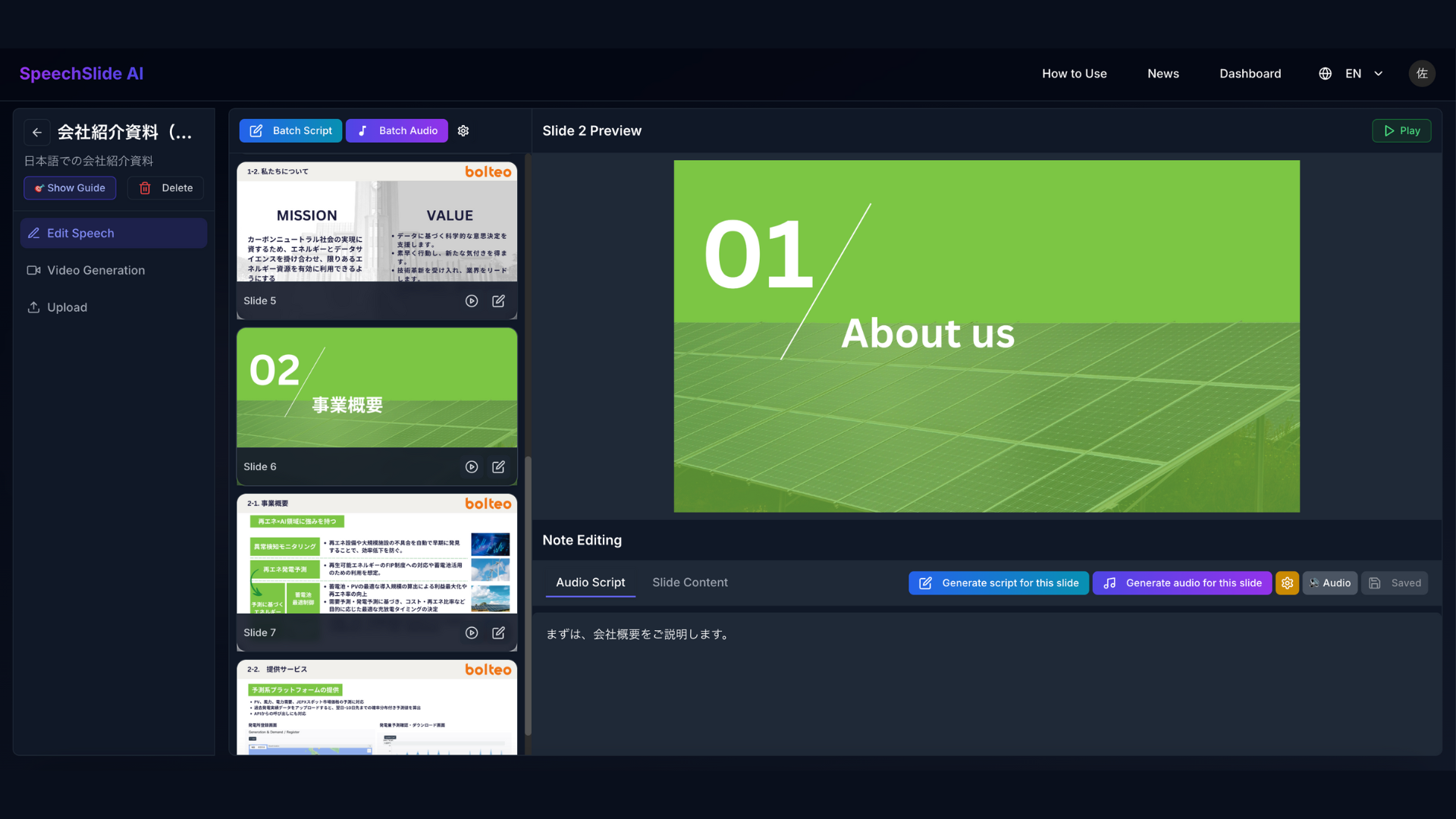
Open Batch Script, choose a language, describe your audience and speaking style in the Instructions box, and click Generate All Slide Notes. "Attach original PDF to AI (Recommended)" is on by default, so the scripts also take the slides' diagrams and layout into account. You can choose from 9 script languages, including Japanese and English, or type in a language name.
Edit the scripts
Revise each slide's Audio Script using the rules in this article. To redo a single slide, use Generate script for this slide. Since an AI voice will read it, write numbers and abbreviations the way they should be said.
Listen and check
Generate the audio and play it slide by slide. You can choose from four voice engines (ElevenLabs, Google, Google (Gemini), and OpenAI), and some engines also let you set the speed or give speaking-style instructions. If something is misread, change how it's written in the script and regenerate that slide's audio.
Make the video
Click Generate Video to export an MP4 (1920×1080). Each slide with audio stays on screen for as long as its audio lasts, followed by a gap (1 second by default). Slides with nothing to say can be set to Audio Disabled, with a display time you choose.
With the default 1-second gap, a 10-slide video runs about 10 seconds longer. If the video has a fixed length, add the gaps to your script timing.
Exported videos don't include subtitles or background music. If you need them, add them in a video editor after exporting. Also, because the voices come from external services, an occasional misreading or audio glitch can happen. Listen to every slide before you export.
On the free plan, you can create up to 2 projects a month with up to 8 slides each, generate scripts and audio for up to 40 slides a month each, and make up to 4 videos a month. Videos can be downloaded with a watermark, and no credit card is required. To compare voices without signing up, the voice samples page lets you hear all four engines.
Once the script is ready, choose how to give it a voice. Whichever you pick, the script-writing approach in this article stays the same.
| Method | Good when | What to prepare in the script |
|---|---|---|
| Record your own voice | You want it in the speaker's own voice. You want to adjust the wording as you record. | If you record in PowerPoint, you can see the script you wrote in the notes on screen while recording. Add pronunciation notes too. |
| Use an AI voice | You don't have time or a quiet place to record. You want to regenerate it whenever the slides change. You also want versions in other languages. | Prepare a read-aloud version of the script, written the way it should be said. |
| Hire a narrator | Commercials, TV programs, and brand videos that need vocal performance | Hand over a table with the running time, the script for each scene, how to pronounce names, and references for the tone. |
A script you've checked against the finished audio can also be shared as a transcript of the video. W3C's accessibility guidance explains that transcripts help people who are deaf or hard of hearing, among others. If you change the wording during recording, update the script to match.
Just upload your slides to get a narrated presentation video like this one.
A university research presentation turned into a narrated video for academic sharing.
Voice: ElevenLabs Eleven v3 / George
Explore slide-to-video workflows across education, healthcare, training, sales, and creator use cases.
View Use CasesYes. The free plan lets you create up to 2 projects and 4 videos per month. No credit card required.
PDF and PowerPoint (PPT/PPTX) files are supported. Upload the slides you already have.
AI narration is available in Japanese, English, Chinese, Korean, German, Spanish, and more.
Yes. Videos can be used for training, sales, lectures, and marketing. Paid plans allow watermark-free MP4 downloads.
A three-step guide to creating AI narration: script techniques that make it sound natural, cautions on commercial use and credit requirements, and four criteria for choosing a tool — with real audio samples embedded.