English versionVideo language
Sample video
Anomaly Detection in Rotating Machinery Using Self-Supervised Learning
A university research presentation turned into a narrated video for academic sharing.
Voice: ElevenLabs Eleven v3 / George
How to practice a presentation alone: a one-week rehearsal schedule, reading your script aloud, per-slide timing, a recording checklist and practice apps.
Official sources checked:
You can practice a presentation entirely on your own. The basic order has five steps: decide the key point of each slide, read your script aloud, time yourself, review a recording and fix what you notice, and do a full run-through in the same setup you will use on the day. If there is a Q&A session, practice your answers to likely questions out loud as well.
This guide explains how to practice a presentation using a fictional university seminar talk created by our editorial team (10 minutes, 8 slides) as a running example. It covers a practice schedule from one week out to the day itself, how to cut a full script down to speaking notes, how to check your script by listening to it read aloud, and a checklist for reviewing recordings, so you can rehearse a presentation alone. It also compares what PowerPoint, Keynote, and presentation practice apps can do, based on each company's official pages as checked on November 10, 2026.
Before you start practicing, write down your time limit, who your audience is, and what you want them to do after the talk. Without these, what you say tends to change with every run-through, and so does the time it takes.
Next, write one sentence for each slide stating the one thing you most want to get across, and assign it a speaking time. The table below is a fictional example created by our editorial team: a university seminar presentation reporting on a visitor survey at a local library.
| Slide | Key point (one sentence) | Target time | Transition to the next slide |
|---|---|---|---|
| 1. Title | Report that library visitors differ by day of the week and time of day | 0:30 | “First, the purpose of the survey.” |
| 2. Purpose | We ran the survey to find better uses for the quiet hours | 1:00 | “Here's how we collected the data.” |
| 3. Method | For two weeks, we asked visitors to fill in a short questionnaire | 1:00 | “We have two main findings.” |
| 4. Finding 1 | Weekday evenings draw mostly students; Saturday mornings draw parents with children | 1:30 | “Next, let's look at why people visit.” |
| 5. Finding 2 | Students mainly come to study; families mainly borrow picture books | 1:30 | “Here's what this difference suggests.” |
| 6. Discussion | Quiet weekday mornings offer few spaces that match what visitors come for | 1:30 | “So we came up with a proposal.” |
| 7. Proposal | Try events with a clear focus on weekday mornings | 1:30 | “Finally, a summary.” |
| 8. Summary | Adapt how the space is used to the visitors at each time of day | 1:00 | On to Q&A |
Allocate time according to what each slide contains. Give more time to slides that need more explanation, such as findings and discussion, and keep the title and summary short. If the times you measure in practice drift from this table, update the table.
If you settle on a one-sentence transition for each slide, you won't have to think about how to begin after you advance to the next one.
Rather than trying to polish everything in a single session, it is easier to focus on something different each day. The diagram below shows an example for when you have a week before your presentation.
A guideline created by our editorial team, not a fixed number of days. Shorten or lengthen the intervals to suit the length of your talk and the time you have to prepare.
If you are short on time, decide which practice comes first. If you only have the day before, start with these three: one timed run-through, listening back to a recording to fix slides that run long, and saying the opening and closing out loud.
When you practice several times, pick one thing to check in each round, such as “timing this time” or “eye contact this time.” With a clear focus, you can tell what changed since the previous round.
Opinions differ on whether you should write a script at all. This guide suggests writing a full script first, then reducing it to speaking notes and finally to keywords as you practice. Writing everything out once fixes what you will say and how long it takes. Cutting it down from there makes it easier to avoid a talk that is just you reading a script aloud.
If you need to speak precisely within a strict time limit, or you are presenting in a language you are less comfortable with, you can also keep the full script in front of you and read from it. Choose based on the rules of the event and the format that lets you speak calmly.
| Stage | When to use it | How to write it | Example (slide 4, “Finding 1”) |
|---|---|---|---|
| Full script | One week to five days before | Write the exact words you will say. Check numbers and names against your materials | “On slide 4, I'll share the results of the survey. Among people who visited on weekday evenings, the largest group was students. The blue bars in the graph are students. On Saturday mornings, by contrast, parents with children made up almost half of all visitors. Who comes to the library clearly depends on the day and the time.” |
| Speaking notes | Three days before to the day before | Three or four lines per slide. Write the order of your points, not full sentences | Finding 1 / Weekday evenings = students are the largest group (blue bars) / Saturday mornings = families almost half / → split by day and time |
| Keywords | The day before and on the day | Keep only the words that jog your memory | Weekday evening, students / Saturday morning, families / split |
Don't write the full script as a reading of the text on your slides. Adding words that tell the audience where to look, such as “the blue bars in the graph are students,” ties what you say to the slide. Our guide to writing a presentation script with AI shows how to turn bullet points into spoken sentences and includes sample prompts.
You can estimate how long your full script should be from your time limit and speaking pace. Our narration script guide includes a worked example of how much text fits into one minute.
In PowerPoint for Microsoft 365, Copilot can also draft speaker notes (your script). To use it, you need a Microsoft 365 plan that includes Copilot.
Once your script is ready, read it aloud rather than silently. A sentence that is easy to follow on the page is not always easy to follow when you hear it.
There are three ways to check your script by voice: reading it aloud yourself, recording yourself and listening back, and turning the script into read-aloud audio and listening to it. Each one catches different problems, so use them together.
| Method | What it catches | How to do it |
|---|---|---|
| Reading aloud | Sentences too long to say in one breath, awkward strings of words, repeated phrases, and numbers or technical terms you are unsure how to say | Stand as you will on the day and read while advancing the slides. Mark any sentence you stumble over and split it into shorter ones on the spot. Decide how to say numbers and technical terms, and note the pronunciation in your script |
| Recording yourself and listening back | Places where you speed up, missing pauses, and filler words such as “um” and “uh” | Record on your smartphone and listen as if you were in the audience. Put a slash (/) before and after points where you want the audience to think, to mark where to pause |
| Listening to your script as read-aloud audio | Whether the order of ideas feels natural, whether linking words are missing, and whether some slides run much longer than others | Listen while looking only at the slides, not the script. Jot down the number of any slide that trips you up, and fix them all after you finish listening |
Listening to read-aloud audio helps you notice where a script you wrote yourself is unclear. When you read your own script, you already know what it means, so it is easy to miss places where words are missing. Turning it into audio lets you step away from the text and check it by ear, from the audience's point of view.
That said, read-aloud audio is not the “correct” way to speak. Use it as a tool for checking flow and length, and decide where to pause and which words to stress based on your audience and what feels natural to you. In the end, practice in your own voice.
If you want to create a script and read-aloud audio from your slides, you can use SpeechSlide AI. Upload a PowerPoint (.pptx/.ppt) or PDF file and the AI writes a spoken-style script for each slide. After editing the script by hand, you can play it in an AI voice one slide at a time or all the way through. The steps are explained later in this article.
When you do a run-through, time each slide as well as the whole talk. Once you know which slides run long, you can fix just those. A smartphone stopwatch works, but PowerPoint and Keynote also have features that record or display the time as you advance through your slides.
In the desktop versions of PowerPoint (Windows and Mac), you can record the time for each slide as follows.
On the Slide Show tab, select Rehearse Timings
The slide show starts, the Rehearsal toolbar appears, and timing begins.
Talk through your slides and select Next to advance
On the toolbar, you can pause, or select Repeat to re-record the time for the current slide.
At the end, choose whether to keep the timings
After the last slide, the total time is shown. Selecting Yes saves the recorded timings. This feature is designed for creating self-running presentations, so if you only want to measure your practice, select No. According to Microsoft, even after selecting No you can see each slide's time in Slide Sorter view (on Windows it switches to Slide Sorter view automatically; on Mac, switch to it from the View tab).
In Keynote on Mac, choose Play > Rehearse Slideshow to run through your talk with a clock or timer on the presenter display. It works without an external display connected.
If you run over time, cut supporting details that your conclusion does not depend on, rather than speaking faster. As long as each slide keeps the key point you set at the start, the talk still holds together. If you have time to spare, add one concrete example where the audience might get lost.
When you rehearse a presentation alone, a recording stands in for the audience. Place your smartphone at the audience's eye level and you can check your voice, eye contact, and posture all at once. If you will present online, share your screen and record just as you will on the day.
PowerPoint has a Record feature that captures your slides and voice. Audio is not recorded while slides are transitioning, so leave a short pause before and after each slide change. In the Windows version, switching the recording window to Teleprompter view lets you read the script from your notes as it scrolls automatically.
In Google Slides, recording moved to Google Vids in August 2026 and starts from the record icon on the right side of the screen. Whether you can use it depends on your account type.
| What to watch | What to check | How to fix it |
|---|---|---|
| Time | Did you finish within the time limit? Which slides ran long? | Drop supporting details from the speaking notes for slides that run long |
| First 30 seconds | Is it clear from the start what the talk is about and what the conclusion is? | Practice the first two or three sentences until you can say them without the script |
| Volume and pace | Could people in the back row, or listening through speakers, hear you clearly? | Add a slash (/) in the script where you sped up, and pause there |
| Filler words | Where do “um” and “uh” pile up? | Decide on the sentence you will say just before that point |
| Eye contact | Are you looking only at your script or the screen? | Cut the script down to speaking notes, and choose sentences to say while looking at the audience (the camera) |
| Posture and gestures | Is your body swaying? Are you unsure what to do with your hands? | Decide where to stand and where to rest your hands |
| Slide changes | Do your slide changes line up with what you are saying? | Mark in the script where to advance each slide |
| Pointing out charts | Do you say in words where to look on a chart? | Name the location in words, such as “the blue bars” or “the number in the top right” |
When you review, first watch with the sound off so you can focus on eye contact and posture. Then listen without looking at the screen, which makes it easier to judge your volume and how clearly your words come across.
From a few days before the presentation, run through it with the same equipment and screen layout you will use on the day. If you will project slides onto a screen and read notes on your own display, practice with exactly that layout.
PowerPoint's Presenter View and the presenter view in Google Slides split the display across two screens, so the audience sees only the slides while you speak with your notes in front of you.
If you created your script in SpeechSlide AI, you can rehearse in Presentation Mode with a presenter view (your script plus the previous and next slides) and a separate audience view (slides only). The audience view opens as a pop-up window, so if it does not appear, check your browser's pop-up settings.
To practice an online presentation, start a meeting with only yourself in Zoom or a similar tool, share your screen, and record yourself presenting. Zoom's local recording (saving to your computer) is available in the desktop app even with a free Basic account. Basic meetings are limited to 40 minutes each, so practice longer talks in parts.
If there is a Q&A session after your talk, prepare the questions you are likely to get along with your answers, and practice saying the answers out loud. To come up with questions, reread your materials from the audience's point of view and ask: “Why can you say that?” “How did you find this out?” “How does it compare with other approaches?” “What difference does it make?”
Your answers stay short if you give the conclusion in the first sentence and follow it with the reasons. For each question, make a note like the one below.
Notes for a likely question (fictional example created by our editorial team)
Question: How many people answered the questionnaire? Could the responses be biased?
One-sentence answer: We received responses from 214 people over two weeks.
Supporting detail: We handed it out during the same time slots on weekdays and Saturdays. However, fewer people came on rainy days, so there were fewer responses on those days.
Slide to show: slide 3 (Method)
Also decide how you will respond to a question you cannot answer. For example: “We didn't cover that in this survey, so I'll check and get back to you.” Keep what you don't know separate from what you will do next.
If no one is available to come up with questions for you, you can give a generative AI chat tool the key points of your materials and ask it to raise questions from the audience's point of view.
Copilot in PowerPoint gained a feature called Prepare for Questions in late May 2026, which finds weak spots in a deck and predicts likely questions (it was announced to organizations in the Microsoft 365 message center). Before you give unpublished research data or confidential materials to an outside service, check your organization's rules.
People search for practice tools about as often as they search for practice methods. The chart below shows average monthly searches in Japan for Japanese-language queries related to “プレゼン 練習” (presentation practice). The query for practice methods (“プレゼン 練習 方法”) gets 90 searches a month, while the query for a presentation practice app (“プレゼン 練習 アプリ”) gets 110, and the query for script read-aloud apps (“原稿 読み上げ アプリ”) gets 40.
Grouped by what they do, the apps and features you can use for practice fall into four types: timing your talk, speaking while viewing your script, recording yourself to review, and AI feedback on how you speak. The table below the chart reflects each company's official pages as checked on November 10, 2026. Because this article was originally written for people presenting in Japanese, the table also shows whether each tool works for presentations in Japanese; all of them can be used for presentations in English.
The two highlighted bars are queries from people looking for practice apps. Keyword Planner values are rounded estimates averaged over one year. English glosses in parentheses were added by our editorial team.
Source: Google Ads Keyword Planner (Japan, Japanese; average monthly searches from October 2025 to September 2026). Retrieved November 10, 2026
| App or feature | What it does for practice | Presenting in Japanese | Price and requirements |
|---|---|---|---|
| Smartphone camera, voice recorder, and timer | Record video or audio to review; time yourself | Yes | The standard apps on your phone are enough |
| PowerPoint Rehearse Timings | Records the time for each slide and for the whole talk | Yes (timing only) | Desktop versions (Windows and Mac). PowerPoint for the web is not covered by the support page |
| PowerPoint Record (video recording) | Records your slides and voice so you can review them. The Windows version can show your notes as a teleprompter | Yes | Microsoft 365, PowerPoint 2024, 2021, 2019, and 2016 |
| PowerPoint Speaker Coach | Evaluates pace, pitch, filler words, reading slide text word for word, and more, then shows a report when you finish | No (English only; PowerPoint's interface language must also be English) | Free preview. Available without an Office subscription |
| Keynote Rehearse Slideshow | Run through your talk with your notes on the presenter display and a clock or timer shown | Yes | Mac. Works without an external display |
| Google Slides recording (Google Vids) | Record your camera and screen, then watch it back through a share link | Yes (the recording itself) | Recording requires Chrome or Edge. Availability depends on account type |
| Zoom local recording | Share your screen in a meeting with only yourself and record the talk to your computer | Yes | Available on the free Basic plan (desktop app). Basic meetings are limited to 40 minutes each. Local recording is not available on smartphones |
| Yoodli | AI listens to your practice and gives feedback; role-plays with an AI partner | Japanese is one of the practice languages (the official pages don't say how detailed the feedback in Japanese is) | Free Starter plan: 5 sessions in total. Paid plans from $8/month, billed annually |
| SpeechSlide AI | Creates a spoken-style script from your slides; plays it in an AI voice slide by slide or all the way through; lets you rehearse with separate presenter and audience views | Yes (no features for analyzing or scoring your delivery) | Free plan: 2 projects per month, up to 8 slides per project, no credit card required. Paid plans from $15/month (¥2,200 including tax in Japan) |
Among the apps checked for this article, few can automatically evaluate your delivery in a Japanese-language presentation. PowerPoint's Speaker Coach covers English only and works only when PowerPoint's interface language is set to English. Yoodli lets you choose Japanese as a practice language, but its official pages don't say how far it evaluates filler words or pace in Japanese.
If you are not sure where to start, begin with timing and recording practice using your smartphone and the rehearsal features in PowerPoint or Keynote. If you want to check your script by ear or rehearse while viewing your script, add a service like SpeechSlide AI. If you are presenting in English and also want feedback on your delivery, add Speaker Coach or Yoodli.
If you have slides, SpeechSlide AI lets you go from writing your script to a full run-through within a single service. You can also use it just to prepare for a live presentation, without making a video.
Upload your file
On the dashboard, select Create New Project and upload a PowerPoint (.pptx/.ppt) or PDF file. For a Google Slides deck, download it as a PDF or PPTX file first.
Generate a first draft of the script
Open Batch Script, set the script language and your instructions (for example: a 10-minute time limit, for a seminar audience, briefly explain technical terms), and select Generate All Slide Notes. You can also regenerate a single slide.
Rewrite it in your own words
Read the script for each slide and check numbers and names against your materials. Rephrase sentences that are hard to say so they sound natural to you.
Listen to it read aloud
Generate audio with Batch Audio and listen slide by slide to check the flow. If you choose Google as the voice generation service, you can change the reading speed (0.25–4.0×) under Speed Selection in AI Voice Settings.
Rehearse in Presentation Mode
When you open Presentation Mode, the presenter view and the audience view open in separate windows. In the presenter view, you can advance slides with the arrow keys, Space, or Page Up/Page Down. Run through the talk out loud while reading the script, and as you get more comfortable, spend more time looking away from it. If you have generated AI audio, you can also listen to it again with Play This Slide or Start Sequence.
Move on to speaking notes
Once you can get through the whole talk, make speaking notes from the script and practice speaking from the notes alone. On the day, you speak in your own voice.
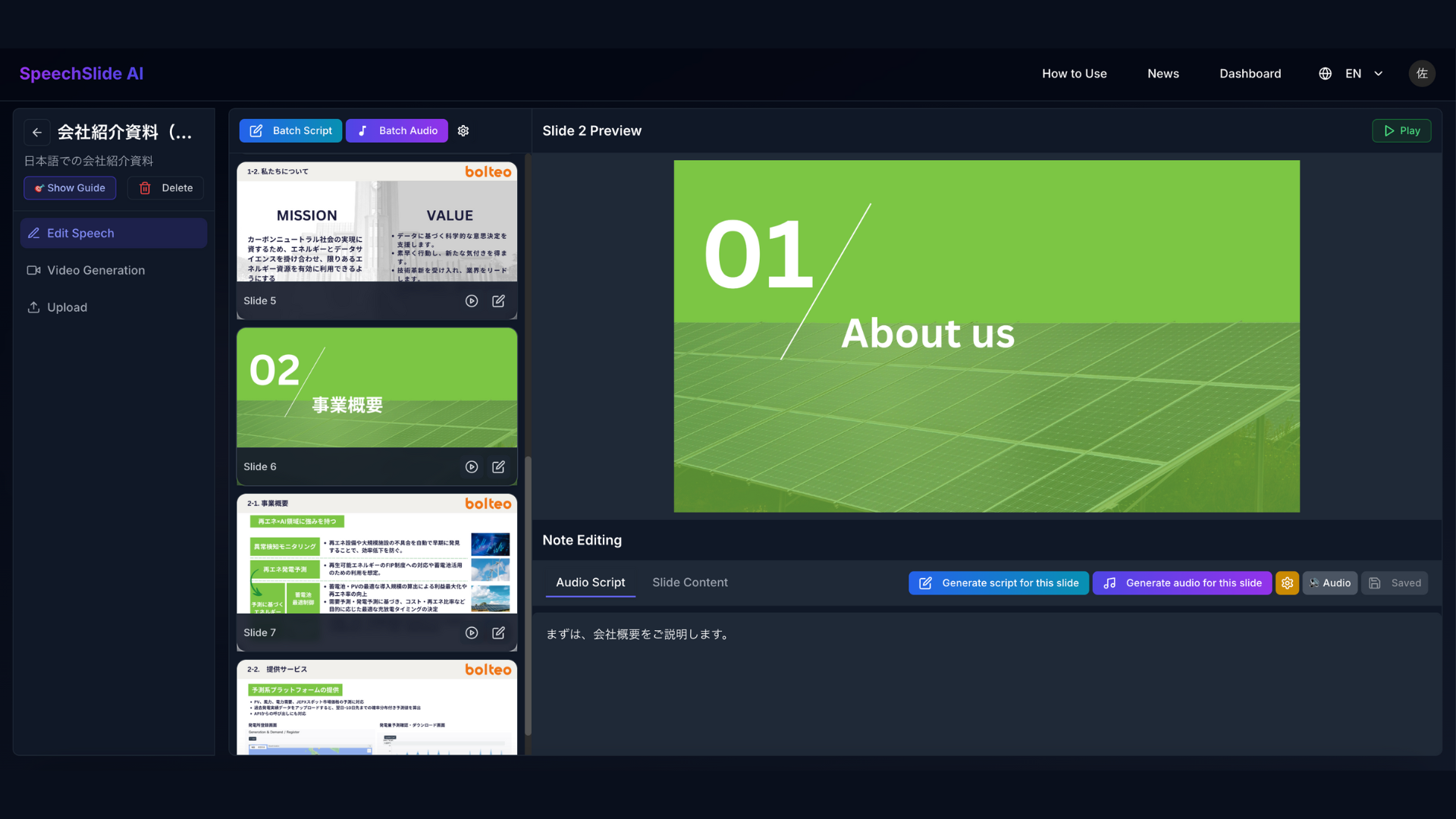
The free plan includes 2 projects per month, with up to 8 slides per project. Script generation and audio generation are each limited to 40 slides per month. No credit card is required to sign up.
SpeechSlide AI has no feature for analyzing or scoring how you speak. Check your pace and eye contact yourself by watching a recording. Also, scripts written in PowerPoint's notes pane are not imported, so if your notes already contain a script, paste it into the script field in SpeechSlide AI.
You can compare how the AI voices sound on the audio samples page without signing up.
If you are presenting in English and it is not your first language, practice in the same order. In addition, try shadowing: play the read-aloud audio of your script as a model and repeat it a moment behind, which makes it easier to check where phrases break and how the rhythm goes. Mark words whose pronunciation or phrasing you are unsure of in the script, and give them extra practice.
In SpeechSlide AI, you can choose English as the script language and have the script read aloud in an English voice.
For presentations in English, you can also get feedback on your pace and filler words from PowerPoint's Speaker Coach. To use it, set PowerPoint's interface language to English.
On the day before, do a final run-through in your real setup and check the items below. On the day itself, rather than running through everything again, just say your opening, closing, and transitions out loud.
If you have a graduation thesis presentation coming up (many Japanese universities ask final-year students to present their thesis), our thesis presentation guide covers everything from slide structure to practice. For ways to use SpeechSlide AI for conferences and research presentations, see our page for academic and research use.
Just upload your slides to get a narrated presentation video like this one.
A university research presentation turned into a narrated video for academic sharing.
Voice: ElevenLabs Eleven v3 / George
Explore slide-to-video workflows across education, healthcare, training, sales, and creator use cases.
View Use CasesYes. The free plan lets you create up to 2 projects and 4 videos per month. No credit card required.
PDF and PowerPoint (PPT/PPTX) files are supported. Upload the slides you already have.
AI narration is available in Japanese, English, Chinese, Korean, German, Spanish, and more.
Yes. Videos can be used for training, sales, lectures, and marketing. Paid plans allow watermark-free MP4 downloads.
Free AI text-to-speech organized into four types — web services, installable software, built-in OS readers, and API free tiers — with the common limitations, credit obligations, and a checklist proving that free does not mean commercial-ready.