English versionVideo language
Sample video
Anomaly Detection in Rotating Machinery Using Self-Supervised Learning
A university research presentation turned into a narrated video for academic sharing.
Voice: ElevenLabs Eleven v3 / George
Plan an undergraduate thesis defense presentation: slide counts by time limit, a slide-by-slide thesis presentation script example, practice, and Q&A prep.
Official sources checked:
Preparing for an undergraduate thesis presentation is easier if you work in this order: (1) check your department's guidelines for the time limit and how to submit slides, (2) split your time into sections and build your thesis presentation slides from that, (3) write a spoken-language script for each slide, (4) time yourself reading it aloud and cut it down to key-point notes, and (5) practice answering likely questions.
This guide covers time limits published by Japanese universities, slide counts and time splits for each time limit, a slide-by-slide thesis presentation script for a 10-minute talk, and a practice schedule leading up to the day. It also covers Q&A preparation and what to check on the venue computer. The examples come from Japan, where final-year students present their graduation thesis (sotsuron) at a department session with a fixed time slot, but the same steps apply to an undergraduate thesis defense presentation elsewhere.
Time limits for a graduation thesis presentation differ by university, faculty, and department. When our editorial team checked seven presentation announcements and programs published by Japanese universities, presentations ran from about 7 to 15 minutes, with 2 to 5 minutes for Q&A. The time limit is set by the announcement from your faculty, department, or lab, so start by reading the guidelines for your own session.
Q&A time (including discussion) is, from top to bottom, 2, 4, 3, 3, 3, and 5 minutes. The University of Electro-Communications figure applies to three programs in its School of Informatics and Engineering; with 1 minute for changeover, each student gets 10 minutes. A guidance page from the Yusa–Yoshioka Lab at Tohoku University says each student has "about 15 minutes." AY means the Japanese academic year, which runs from April to March.
Source: Graduation thesis and graduation research presentation announcements and programs published by each university (checked 2026-11-10; links to each document at the end of this section; all in Japanese)
The guidelines also cover other things that affect your preparation. For example, the AY2025 announcement from Yamaguchi University's Joint Faculty of Veterinary Medicine says slides are submitted the day before on a USB drive or similar, the venue computer runs PowerPoint 2024, the .ppsx format is recommended, and presenters advance their own slides.
Besides the time limit, check early on how and by when to submit your slides, what computer the venue uses, any required aspect ratio or template, when the warning bells ring, and whether you may look at a script or notes. Things to check at the venue are collected later in "What to check the day before and on the day of your thesis presentation session."
A common rule of thumb is one slide per minute. In practice, though, slides take different amounts of time: the title slide is quick, while a results graph takes longer to explain. Before deciding how many slides to make, split your time across the sections.
If you plan to finish exactly on time, any stumble on the day will push you over. The table below splits the time using a target 30 seconds shorter than the limit.
| Time limit | Target speaking time | Main slides (guide) | Title, background, aim | Methods | Results | Discussion and conclusion |
|---|---|---|---|---|---|---|
| 7 min | 6 min 30 s | 6–7 slides | 1 min 30 s | 1 min 15 s | 2 min | 1 min 45 s |
| 10 min | 9 min 30 s | 9–10 slides | 2 min 20 s | 2 min | 3 min | 2 min 10 s |
| 12 min | 11 min 30 s | 11–12 slides | 2 min 40 s | 2 min 30 s | 3 min 40 s | 2 min 40 s |
| 15 min | 14 min 30 s | 14–15 slides | 3 min 30 s | 3 min | 5 min | 3 min |
Results get the most time because that's where listeners judge what your study found. For the background, narrow down from the field as a whole to your own research question, and keep it to about two slides in a 10-minute talk. Put detailed experimental conditions or survey settings in a single table, or move them to backup slides.
The same approach works for survey-based or literature-based research in the humanities and social sciences. Replace "Methods" with your survey or analysis method and source materials, and "Results" with the results of your analysis.
The basic slide order follows the chapters of your thesis: background, aim, methods, results, discussion, conclusion. The table below is an example for a 10-minute, 10-slide presentation.
| Slide | What to show | What to say (key points) |
|---|---|---|
| 1 Title | Title, your name, lab, and the name of the session | Give your name and title, and add the conclusion in one sentence |
| 2–3 Background | A figure showing the problem in the field; what earlier studies have and haven't shown | Why this problem matters, and the gap your study fills |
| 4 Aim | Your research question in one or two sentences | State it plainly: "This study tested whether ..." |
| 5–6 Methods | Subjects, procedure, and conditions as a figure or table | What you compared and how. Put detailed conditions in a table |
| 7–8 Results | Key graphs or tables, one per slide | How to read the figure → the numbers → what it shows |
| 9 Discussion | Interpretation of the results, comparison with earlier studies, limitations | What the results do and don't show |
| 10 Conclusion and next steps | A conclusion that answers the aim; future work | Answer using the same words as on the aim slide |
| Backup slides | Detailed data, extra analyses, definitions of terms | Not shown in the main talk; open them if asked |
A presentation script isn't a summary of your thesis; it's what you say while showing the slides. Listeners can't reread a sentence they missed, so keep sentences short and tell them in words where to look on each figure.
| Thesis sentence | Script sentence |
|---|---|
| This study aimed to elucidate the effect of commuting time on out-of-class study time. | The goal of this study is to find out whether a long commute cuts into study time outside class. |
| Analysis showed that study time in the ≥60-minute group was significantly shorter than in the <30-minute group (p<0.05). | Here are the results. Students who commute 60 minutes or more each way studied less outside class than those who commute less than 30 minutes. This difference was statistically significant. |
| These findings suggest that commuting time may constrain study time. | This suggests that the time spent commuting may be cutting into the time students have for studying. |
Write the one thing you want to say on each slide in a single sentence
The conclusion you wrote as the slide heading becomes the first sentence of the script.
Break long thesis sentences into short ones
Don't pack conditions and conclusions into one sentence; connect short sentences with words like "first" and "as a result."
Add words that point to the figure
Instead of just saying "here," say where to look, for example: "The vertical axis on the left graph is study time."
Briefly explain technical terms the first time they come up
Say the full name of each abbreviation at least once. For terms with more than one accepted pronunciation, use the one your lab uses.
Add a linking sentence when you change slides
Saying "So far, we've seen ... Next, I'll look at ..." helps listeners keep track of where they are in the talk.
How long your script should be depends on how fast you speak. Guidelines for how much to say per minute vary between sources, and there's no fixed standard; it also changes with the speaker and the content. For example, at 300 Japanese characters per minute, a one-minute slide needs a script of about 300 characters; for an English script, measure your own words per minute instead. In the end, read it aloud, time it, and adjust to your own pace.
The following is a fictional example created by our editorial team. The research topic, figures, and names are not real. The topic is "The relationship between university students' commuting time and out-of-class study time (a questionnaire survey of undergraduates)," and the script covers the main slides of a 10-minute, 10-slide talk. This is an English translation of the Japanese example; the times and character counts refer to the Japanese original read at 300 characters per minute.
Thesis presentation script example (a fictional example created by our editorial team, translated from Japanese)
[Slide 1 – Title / about 20 s, 106 characters in Japanese] Thank you for your time. I'm [name] from the [name] Lab. I'll be presenting on "The relationship between university students' commuting time and out-of-class study time." To give you the conclusion first: students with longer commutes spent less time studying outside class.
[Slide 2 – Background / about 30 s, 157 characters in Japanese] Preparing for and reviewing classes takes time outside of class. At the same time, commuting time varies a lot from student to student. I commute 70 minutes each way myself, and I struggled to find time for assignments. This graph shows the distribution of one-way commuting times reported in our survey. They range from under 30 minutes to more than 90 minutes.
[Slide 4 – Aim / about 20 s, 111 characters in Japanese] So in this study, I tested whether students with longer commutes spend less time studying outside class. Here, commuting time means one-way travel time, and study time means time spent preparing for and reviewing classes and doing assignments. Time spent studying while commuting is not included in study time.
[Slide 5 – Methods / about 40 s, 207 characters in Japanese] Now for the methods. I ran an online questionnaire for undergraduates at [university] in [month] and received 212 responses. As this table shows, I divided respondents into three groups by one-way commuting time: under 30 minutes, 30 to under 60 minutes, and 60 minutes or more. The right column shows the number of students in each group; every group has at least 60. For study time, respondents reported their out-of-class study time per weekday in minutes. There was no large imbalance in year of study between the groups.
[Slide 7 – Results / about 40 s, 200 characters in Japanese] Here are the results. First, how to read the graph. The horizontal axis shows the commuting-time groups, and the vertical axis shows out-of-class study time per weekday. The vertical lines show how widely the data are spread. From left to right, the averages were 75, 68, and 54 minutes. The group commuting 60 minutes or more studied about 20 minutes less than the under-30-minute group. This difference was statistically significant. On the other hand, there was no clear difference between the under-30-minute group and the 30-to-60-minute group.
[Slide 9 – Discussion / about 35 s, 177 characters in Japanese] These results suggest that a long commute may be cutting into the time students have to study at home. However, because this was a single survey, we can't say that commuting time is the cause. Other factors, such as hours spent on part-time jobs, may also play a role. And because time spent studying while commuting wasn't counted, the difference in total study time, including the commute, may be smaller.
[Slide 10 – Conclusion and next steps / about 30 s, 158 characters in Japanese] To sum up. The aim of this study was to examine the relationship between commuting time and out-of-class study time. In conclusion, students who commute 60 minutes or more each way tended to study less outside class than those who commute less than 30 minutes. Next, I'd like to include part-time work hours in the analysis and look at how students use their commuting time. That concludes my presentation. Thank you very much.
Some slides take less time to read than their allocation because that leaves room for pointing at the figure and advancing to the next slide. You may not read at exactly the calculated pace, so time yourself reading aloud and adjust.
On the results slide, the order is "how to read the figure → the numbers → what it shows," and the discussion separates what the results show from what they don't (they can't show that the commute is the cause). Mentioning points likely to come up in Q&A during the main talk gives you something to build on when you answer.
Advice on whether to prepare a script varies. Some guides say not to write one, or not to hold one while presenting; others recommend writing a script and practicing with it. This guide recommends writing a full script to settle the content and timing, then reducing it to key-point notes as you practice.
| Stage | Form of the script | Purpose |
|---|---|---|
| Write (about 2 weeks before) | Full script (written slide by slide) | Settle the wording and time it |
| Practice (from about 10 days before) | Key-point notes for each slide (a few words to one line) | Learn to recall what to say just by looking at the slide |
| The presentation | Key-point notes, or speaker notes in Presenter View | Look at them only when you get stuck |
Key-point notes example (slide 7, "Results," from the script above)
Horizontal axis: 3 commuting-time groups / vertical axis: out-of-class study time per weekday
75 min → 68 min → 54 min
60+ min group: about 20 min less than the under-30 group (significant)
Link: "Next, let's consider why it's shorter."
If you try to memorize the whole script word for word, forgetting a single word can leave you stuck. Memorize only the first sentence of each slide and the linking sentences, and for the rest, glance at your notes and speak in your own words.
With PowerPoint's Presenter View, your notes appear only on your own screen while the audience sees just the slides. Whether you can use Presenter View on the venue computer, and whether you may look at notes, depends on the session, so check the guidelines or ask your lab.
You can also produce a first draft of your thesis script with AI, using the speaker-notes generation in PowerPoint or Keynote, or SpeechSlide AI, which creates a script and read-aloud audio from your slides. The table below shows where each one puts the script and what you need to use it.
| Tool | Where the script appears | What you need | What to check |
|---|---|---|---|
| Copilot in PowerPoint (generate from the Notes dropdown on the View tab) | Speaker notes in PowerPoint; choose all slides or just the current slide | PowerPoint for Microsoft 365 and a plan that includes Copilot | If Copilot doesn't appear, it may not be included in your subscription or may be unavailable under your organization's settings. Microsoft says the feature works best with fewer than 50 slides |
| Generated presenter notes in Keynote (beta) | Presenter notes in Keynote | An Apple Creator Studio subscription (macOS 26 or later on a Mac) | In beta. Apple's What's New page doesn't say which languages the feature supports |
| SpeechSlide AI (upload a PDF or PowerPoint file and generate) | The per-slide script field in the SpeechSlide AI editor | An account (email address or Google account). The free plan allows up to 8 slides per project | Scripts are not written back into your PowerPoint file. You can have an AI voice read them aloud to check the length |
In the 61st Survey of Student Life by the National Federation of University Co-operative Associations in Japan (October–November 2025), 92.2% of students said they had used generative AI. Universities are also publishing their own policies on how generative AI may be used in coursework and research.
Before you use it, check your university's policy and your supervisor's instructions. In a 2023 notice, Japan's Ministry of Education, Culture, Sports, Science and Technology (MEXT) said universities should ideally show students how generative AI is to be handled, and asked that confidential or personal information not be entered carelessly. Some universities, such as Iwate University in its basic policy, prohibit entering unpublished papers or research data into generative AI. If your thesis data is unpublished, also check whether you may upload it to an outside service. If you study outside Japan, look for your university's generative AI or academic integrity policy.
Don't use AI output as is; check it first. The MEXT notice also says output may contain errors and needs to be checked and verified. Compare the numbers, terms, and conclusions against your thesis, and rewrite them in your own words before using the script for practice.
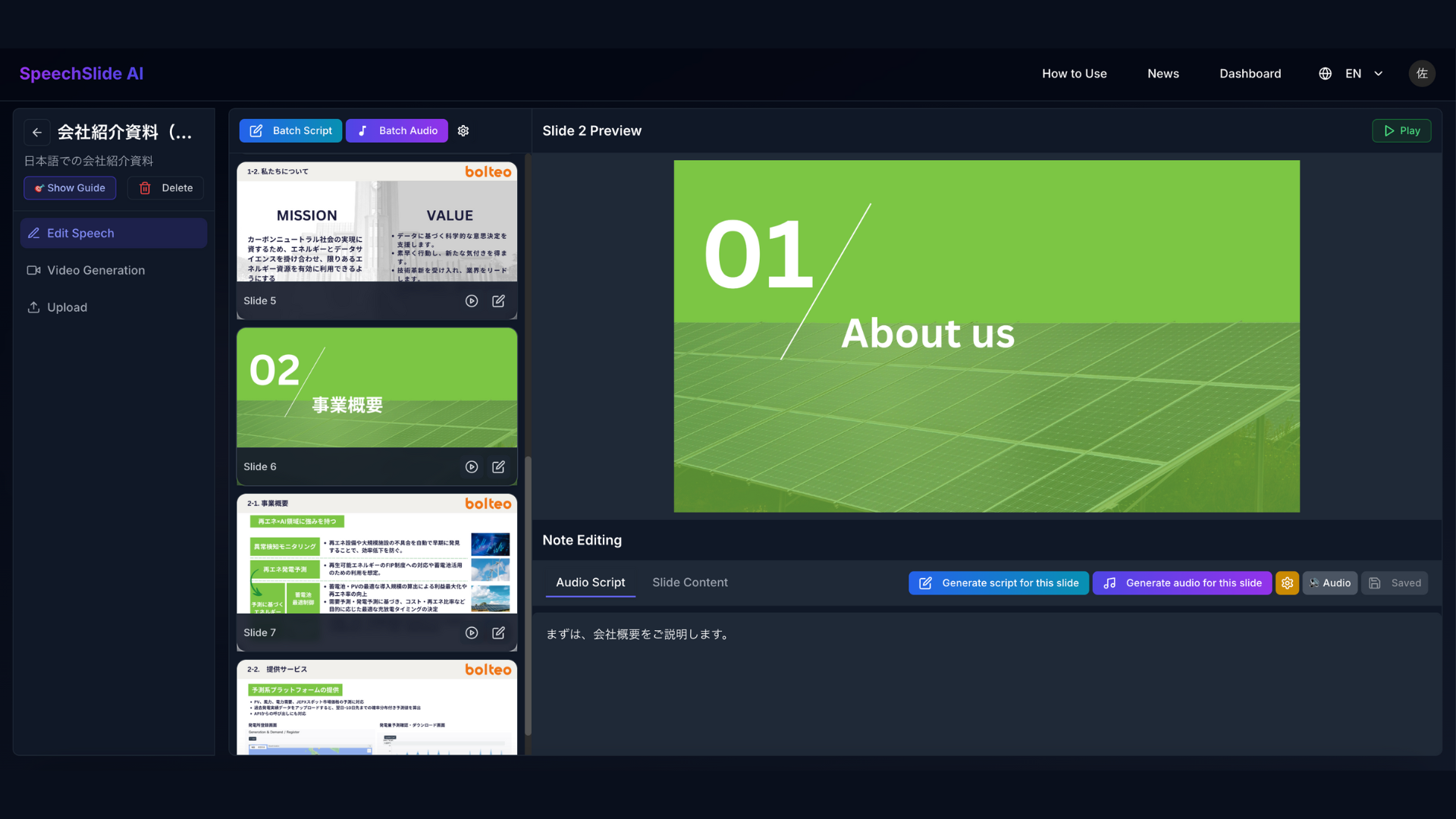
SpeechSlide AI takes your PDF or PowerPoint slides, writes a spoken-style script for each slide, and can read it aloud with an AI voice. For a thesis presentation, you can use it to produce a first draft of the script and to listen to it to check the length and flow.
Prepare your slides as a PDF or PowerPoint file
Google Slides files can't be imported directly, so export to PDF or PPTX. You can't replace the file after uploading, so use a version whose structure is mostly final.
Generate scripts for all slides with Batch Script
Choose the language you'll present in, and describe your session in the Instructions box (see the example below). "Attach original PDF to AI (Recommended)" is on by default, so the script takes figures and layout into account.
Rewrite each slide in your own words
Check that numbers, terms, and conclusions match your thesis, and delete anything that was added but isn't on the slide. You can regenerate a single slide that didn't come out well. Batch generation has no undo, so don't rerun it after editing by hand.
Create read-aloud audio with Batch Audio and listen to it
Fix slides that run long and phrases that are hard to follow by ear. The AI voice occasionally misreads words; if a technical term is mispronounced, change how it's written in the script (for example, spell it the way it sounds) and regenerate.
If you present in PowerPoint, paste the script into the notes
SpeechSlide AI scripts are not written back into your PowerPoint file. To see them in Presenter View, copy the script into PowerPoint's notes pane. Likewise, anything already in PowerPoint's notes is not imported into SpeechSlide AI.
Example of what to write in the Instructions box
Write a script for a graduation research presentation (10-minute talk, 3 minutes of Q&A). The audience is faculty and students from the same department.
Make each slide about one minute long, and use spoken language rather than the written style of a thesis.
Briefly explain technical terms the first time they appear. On results slides, explain how to read the figure, then the numbers, then what they show.
Don't add numbers or conclusions that aren't on the slides.
On the free plan (no credit card needed), you can create up to 2 projects a month with up to 8 slides each, and generate scripts and audio for up to 40 slides a month each. Regenerations count toward these limits. If your presentation runs 7–8 minutes with 8 or fewer main slides, it fits in one project.
If you have 9 or more main slides, as in the 10-minute, 10-slide example above, split the file into decks of 8 slides or fewer across two projects, or use the Standard plan, which allows up to 20 slides per project (¥2,200/month including tax; users outside Japan are billed $15/month). If you switch back to the free plan, the Standard plan is canceled at the next renewal date, so you can use it for just the month before your presentation.
You keep the rights to the slides you upload and to the scripts, audio, and videos you create. The operating company publishes a security whitepaper (summary) that you can share when asking your lab whether the service is OK to use.
Start practicing by reading aloud and timing yourself. Reading silently won't reveal awkward phrasing or overruns. If your lab holds rehearsals or you present in a seminar (zemi, a small class led by a professor), run through the talk once on your own beforehand so you have time to address the feedback you get.
Adjust the dates to your session's and lab's schedules. If there's only one lab rehearsal, do more solo practice before it.
| Practice method | What it shows you | Tools (examples) |
|---|---|---|
| Read aloud and time yourself | Awkward sentences, overall length | Stopwatch, smartphone timer |
| Record the time for each slide | Which slides take too long | PowerPoint's Rehearse Timings, Keynote's Rehearse Slideshow |
| Listen to the script as audio | Script length and flow, phrasing that's hard to follow by ear | Read-aloud features such as SpeechSlide AI's |
| Record video or audio and review it | Speaking pace, verbal habits, eye contact, pauses | Smartphone, PowerPoint's recording feature |
| Run through in a presenter view | Whether you can advance slides while looking at your notes | PowerPoint's Presenter View, SpeechSlide AI's Presentation Mode |
| Rehearse in front of people | Parts that don't come across, likely questions | Lab rehearsals, seminar presentations |
In PowerPoint, Rehearse Timings on the Slide Show tab records the time for each slide and the total. If you save the timings, each slide's time appears in its bottom-right corner in Slide Sorter view. If you'll advance the slides yourself on the day, open Set Up Slide Show and choose Manually under Advance slides.
If you run over, don't speed up; decide what to cut. Move content to backup slides in this order: general background, detailed method conditions, then results figures you don't use in your conclusion.
SpeechSlide AI's Presentation Mode shows the script and the previous and next slides on the presenter screen, and only the slides on the audience screen, in separate windows. You can play the audio for a single slide or play through the whole deck. The AI voice is one model for checking length and flow; on the day, you speak in your own voice. You can compare voices on the audio samples page without signing up.
PowerPoint's Speaker Coach (which gives feedback on things like pacing and filler words) only understands English and is only available when your Microsoft 365 interface language is English (as of November 2026). You can't use it to practice a presentation in Japanese or any other language.
Some sessions include Q&A in the grade. The AY2018 program of Hosei University's Department of Psychology (Faculty of Letters) says evaluation is based on the thesis, the abstract, the oral presentation, Q&A, and attendance at the session. Listing likely questions by type helps you avoid gaps.
| Question type | Example question | How to prepare |
|---|---|---|
| Aim and significance | Why did you choose this topic? | Be able to restate what you said on the background slides in one sentence |
| Validity of the methods | Why did you choose these subjects or conditions? | Your reasons, and why you didn't choose other methods |
| Interpretation of the results | Can you say the difference isn't due to chance? | The statistical test you used, the number of trials, and the raw data behind each figure |
| Limitations | Did you consider the influence of other factors? | The limitations you mentioned in the talk, and how you would test them next |
| Difference from earlier work | How is this different from [author]'s study? | State the difference in one sentence. Put the key points of earlier studies on a backup slide |
| Future work | What will you look at next? | Be able to explain the "next steps" on your conclusion slide in concrete terms |
A pattern for answering (example)
Briefly restate the question: "So your question is about why I chose [the approach]."
Answer first, then give one or two reasons: "In short, [answer]. The reason is [reason]."
Show a prepared slide if you have one: "Please see backup slide 12."
If you don't know, say so and add your thinking: "I didn't test that in this study. I think it could be checked by [method]."
Having your supervisor or lab members ask you questions at a rehearsal shows which questions are likely to come up. When preparing alone, you can also ask a generative AI tool to "list questions faculty might ask about this presentation" and use the answer to brainstorm. In that case, too, follow your university's rules described earlier.
At a thesis session, you may present on the venue's computer rather than your own. Check the following by the day before so you won't panic if the layout breaks or you can't see your notes.
| What to check | Details and examples |
|---|---|
| Submission method and deadline | Examples include submitting on a USB drive or similar the day before (Yamaguchi University, Joint Faculty of Veterinary Medicine) and uploading before the session or by the morning of the session (University of Electro-Communications) |
| File format and PowerPoint version | In one example, the venue computer runs PowerPoint 2024, and .ppsx (a format that opens as a slide show) is recommended to avoid shifted text and images (Yamaguchi University, Joint Faculty of Veterinary Medicine) |
| Fonts | Fonts not installed on the venue computer are replaced with other fonts. In PowerPoint for Windows, you can embed fonts under File → Options → Save (some fonts can't be embedded) |
| Aspect ratio and display | Whether the edges of your slides get cut off or empty margins appear on the venue projector |
| Viewing your notes | Whether you can use Presenter View at the venue. If not, bring key-point notes on paper (check the guidelines on whether you may look at notes) |
| Advancing slides | Whether you advance them yourself or ask a staff member, and whether the file is set to advance slides automatically using recorded timings |
| Warning bells and changeover | When the bells ring (Yamaguchi University, Joint Faculty of Veterinary Medicine: at 7, 8, and 12 minutes; Bunkyo University, Faculty of Business Administration, AY2023: at 8, 10, and 13 minutes), and how much time you have to change over from the previous presenter (1 minute at the University of Electro-Communications) |
| Run-throughs with your lab | Gakushuin University's Department of Physics asks each lab to put all its members' slides on one computer and practice presenting in turn |
Start preparing for your thesis presentation by checking the time limit and submission method in the guidelines, then decide how many slides to make from your time split. Write a full script, time it aloud, and cut it down to key-point notes as you practice. List likely questions by type, and practice answering them aloud as well.
If you plan to present your graduation research at an academic conference, this article may also help.
If you have to submit your presentation as a video, our guide to recording audio in PowerPoint explains how to record narration slide by slide and export it as an MP4.
Just upload your slides to get a narrated presentation video like this one.
A university research presentation turned into a narrated video for academic sharing.
Voice: ElevenLabs Eleven v3 / George
Explore slide-to-video workflows across education, healthcare, training, sales, and creator use cases.
View Use CasesYes. The free plan lets you create up to 2 projects and 4 videos per month. No credit card required.
PDF and PowerPoint (PPT/PPTX) files are supported. Upload the slides you already have.
AI narration is available in Japanese, English, Chinese, Korean, German, Spanish, and more.
Yes. Videos can be used for training, sales, lectures, and marketing. Paid plans allow watermark-free MP4 downloads.
Learn how to create presentation videos for academic conferences with AI. Upload your slides, and AI drafts a script and turns it into a narrated presentation video. We also cover making the script and voice in English and other languages for international conferences.